
Managing Projects
Keep your saved work organized and your context up to date.

Your Dashboard
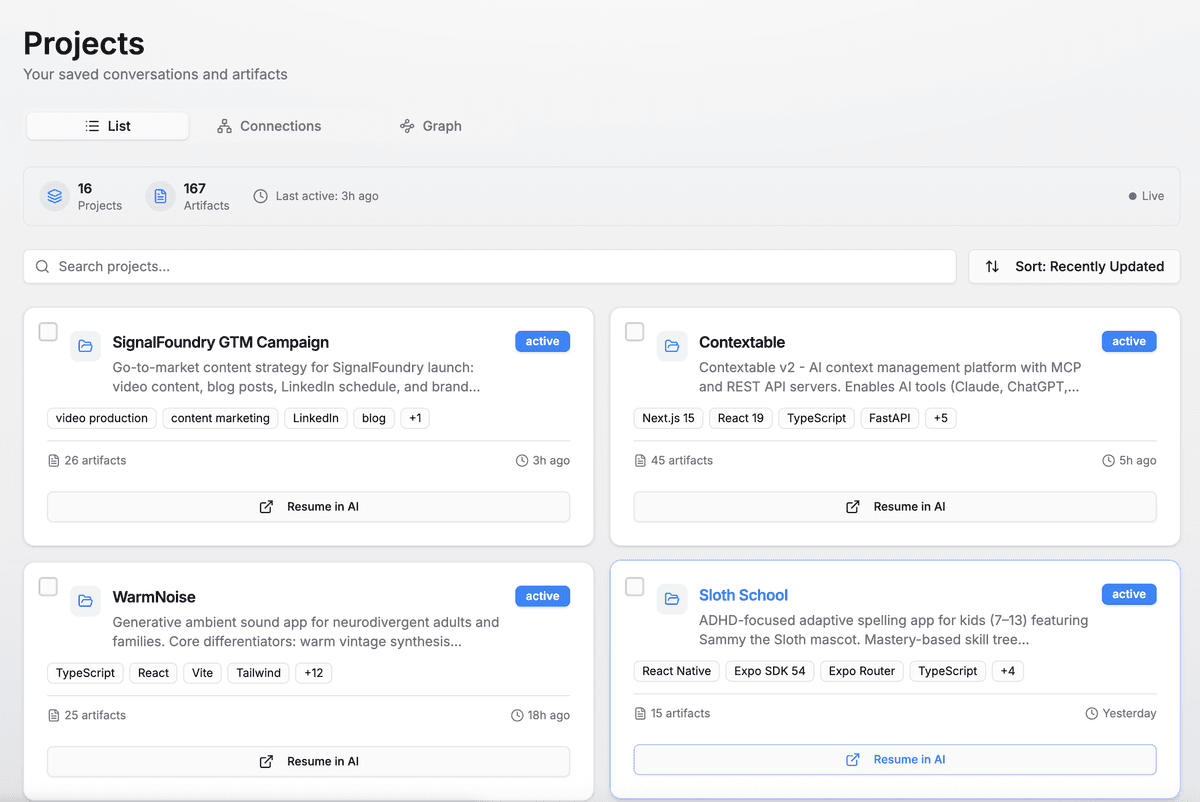
Visit Projects to see everything you've saved. Projects are sorted by last updated, so your active work is always at the top.
What you'll see:
What You Can Do
View Project Details
Click any project to see its full content - goals, status, decisions, everything that was saved. Great for reviewing before a session.
Edit Content
Make quick edits directly in the dashboard. Fix typos, add notes, or update status without starting an AI conversation.
Archive Projects
Done with a project? Archive it to keep your active list clean. Archived projects are still saved and can be restored anytime.
Delete Projects
Permanently remove projects you no longer need. This cannot be undone, so we'll ask you to confirm.
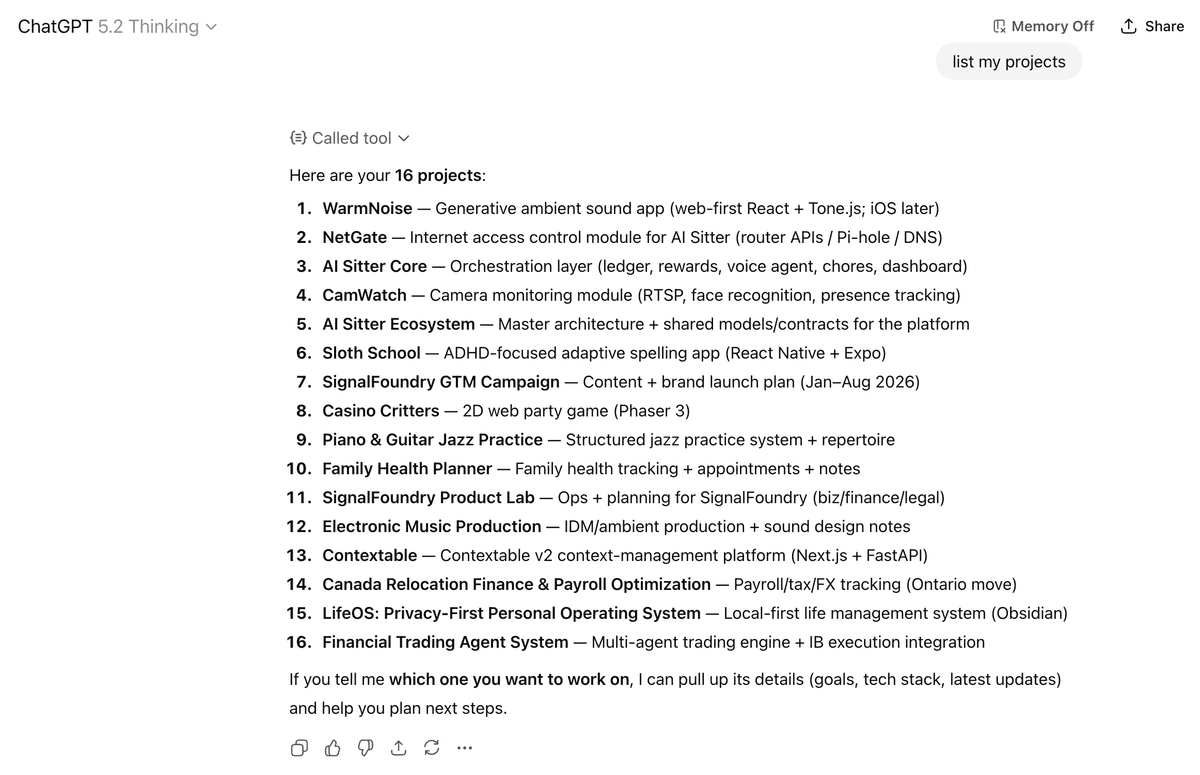
List Your Projects
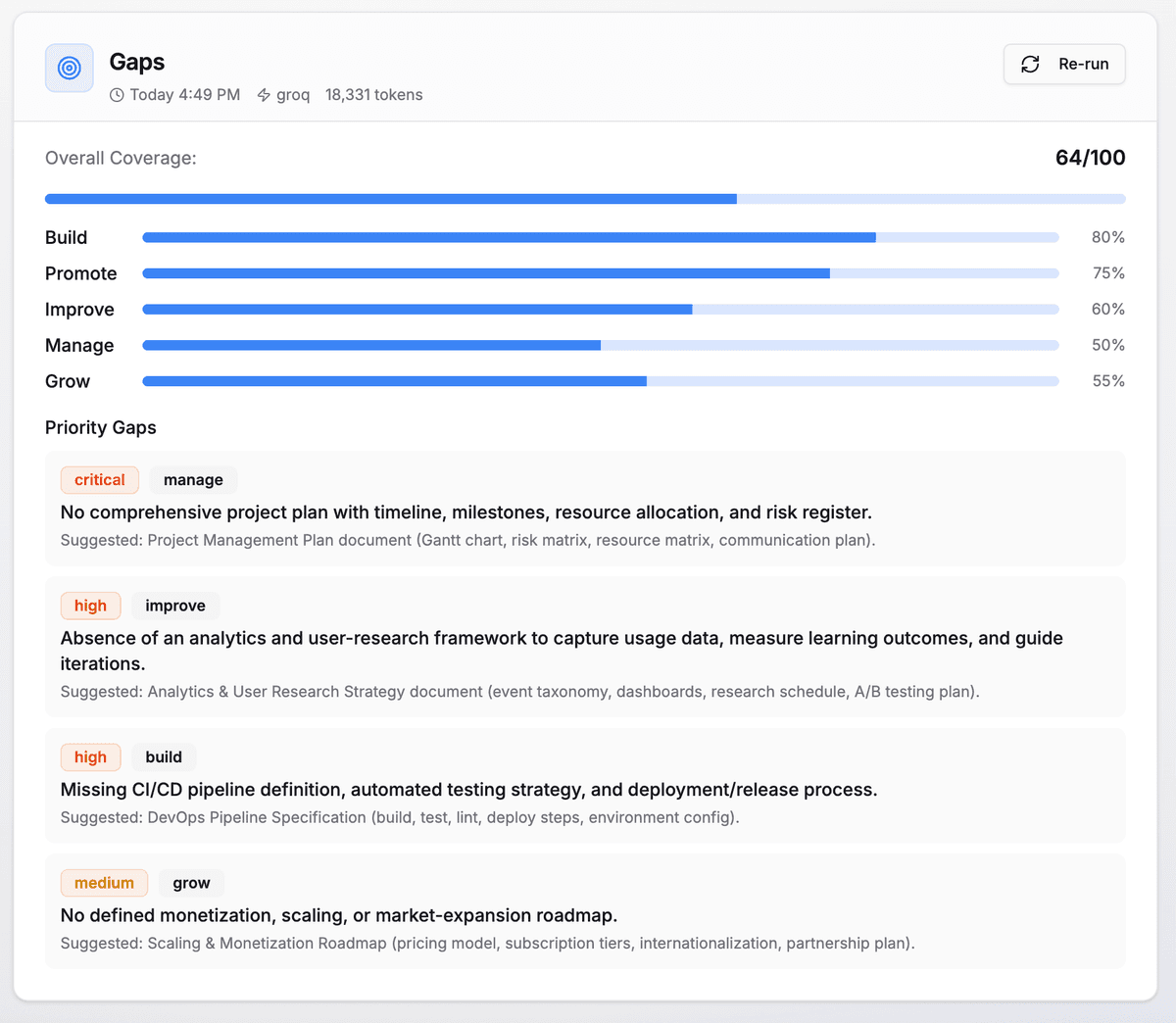
AI-Powered Analysis
Staying Organized
Use clear project names
"API Redesign - March 2025" is better than "Project 1". You'll thank yourself when you have 20 projects.
Add tech stack tags
Tag projects with technologies (React, Python, etc.) to quickly identify what each project involves.
Archive completed work
When a project is done, archive it. This keeps your active list focused on what you're currently working on.
Update context regularly
After each working session, save your progress. Stale context leads to confusion in future sessions.
Your Data, Your Control
Export Everything, Anytime
Your projects and artifacts belong to you. On any project page, click the Export button to download a complete zip file with all your content in markdown format.
- ✓All artifacts included as markdown files
- ✓Project metadata and structure preserved
- ✓Works great as context for Claude Code, Cursor, or any AI tool
Organizing Multiple Documents
Each project can contain multiple saved documents. For large projects, we recommend splitting content by importance level so your AI can load intelligently:
Core Context
CoreArchitecture decisions, key goals, essential constraints. Always loaded first.
Current Status
NormalProgress updates, blockers, next steps. Loaded when there's room.
Code Examples
NormalReference implementations, code snippets you want to reuse.
Detailed Specs
ReferenceAPI docs, meeting transcripts, research. Loaded on demand.
Why split documents? AI context windows have limits. By organizing content by priority, your AI can load what matters most and fetch details only when needed. This keeps your conversations fast and focused.