
Resuming Work
Pick up exactly where you left off by loading your saved context into any new conversation.

How It Works
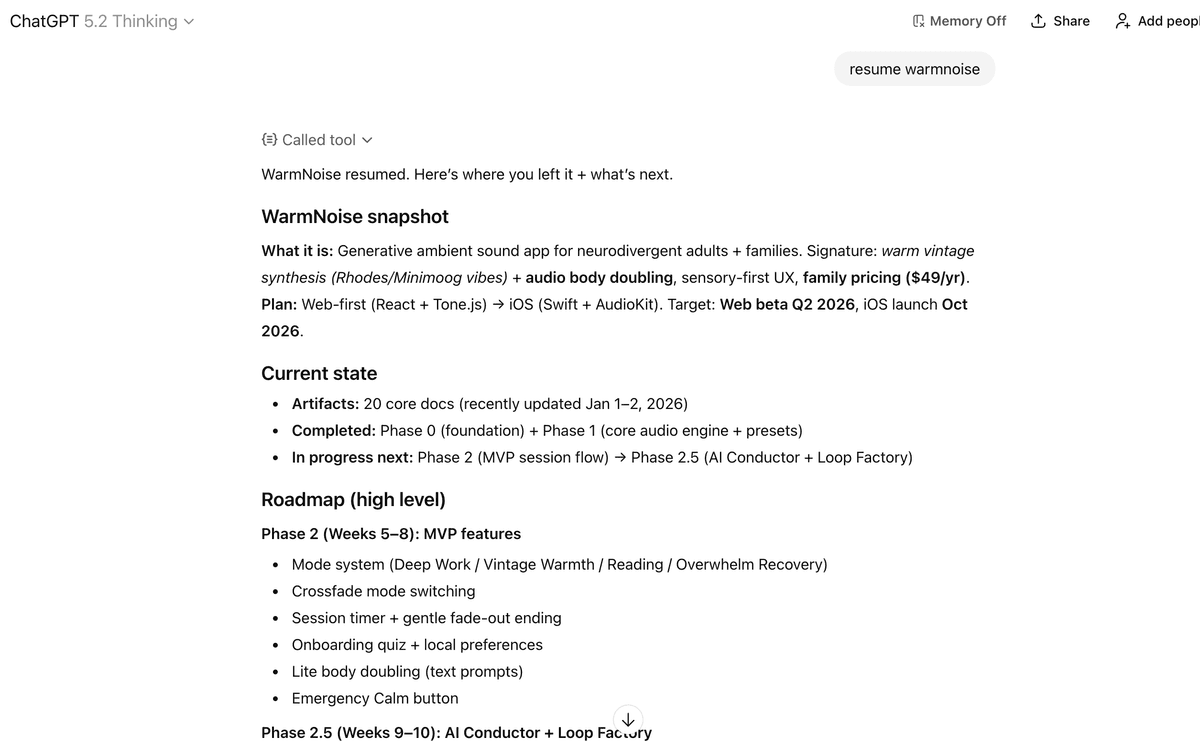
When you load a saved project, your AI instantly knows:
- →What you're working on and why
- →All the decisions you've made
- →What's done and what's left
- →The exact context from your previous sessions
No more "let me explain my project again..." - just continue working.
How to Resume
Start a new chat
Open a fresh conversation in ChatGPT, Claude, or your preferred AI. Make sure Contextable is enabled.
Paste the "Resume Project" prompt
From Prompts, copy the prompt and paste it with your project name.
Choose your project
Tell the AI which project to load. It will fetch your saved context and summarize where you left off.
Continue where you left off
The AI now has full context. Ask questions, make progress, and save again when you're done.
Different Ways to Resume
Resume Project
Best for: Starting a new session. Shows what's in your project, then you can ask for specific details you need.
Update Project
Best for: Mid-conversation when you want to save new progress. Adds a new artifact to your existing project.
My Projects
Best for: When you want to see all your projects before deciding which one to continue.
Smart Context Loading
For large projects, your AI can intelligently manage how much context it loads to stay within its context window limits.
Priority Loading
Core items (key decisions, architecture) load first. Reference items (detailed specs, logs) only load when specifically requested.
Selective Loading
For very large projects, the AI can load summaries first, then fetch full content for specific items as needed.
How it works: When loading a project, your AI automatically receives size estimates and can make smart decisions about what to load. You don't need to do anything - it just works. For very large projects, it might say "I loaded the 5 core artifacts; want me to fetch the detailed specs too?"
Keeping Context Current
After making progress in a resumed session, use the "Update Project" prompt to update your saved context. This way, your next session starts from the latest state.
The workflow:
Tips
Works across sessions
Close your browser, come back tomorrow. Your context is still there. Works with any connected AI.
Context loads fast
Even large projects load in seconds. The AI gets everything it needs in one fetch.
Use specific project names
"Load my API redesign project" works better than "load my project" if you have multiple saved.