
Troubleshooting
Quick fixes for common issues.
Connection Issues
"Connection failed" when linking AI
Try:
- Make sure you're signed in to Contextable first
- Clear your browser cookies and try again
- Use an incognito window to rule out extension conflicts
- Check that your AI platform subscription supports integrations
Contextable tools not appearing in chat
Try:
- Look for a "connectors" or "tools" toggle in your chat interface
- Start a new conversation (some AIs cache tool lists)
- Disconnect and reconnect Contextable in your AI's settings
- Refresh the page
"Unauthorized" or "Authentication failed"
Try:
- Your connection may have expired - reconnect in AI settings
- Check that your Contextable account is still active
- Sign out of Contextable and sign back in
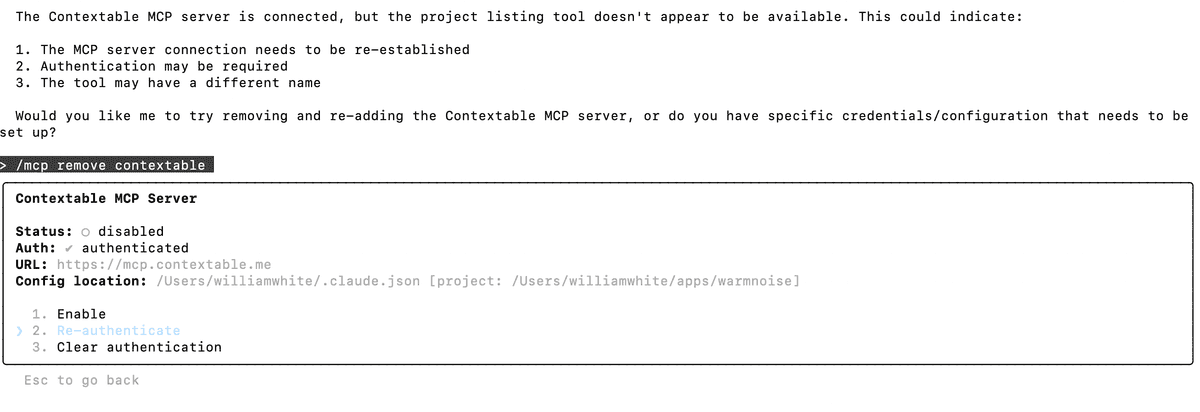
Claude Code connection issues
Debug the MCP connection:
- Run
/mcpto see your connected servers - Check if Contextable shows as "connected" with available tools
- Run
/mcp reset contextableto reconnect - If OAuth fails, try
/mcp remove contextableand add again
Saving Issues
AI generates content but doesn't save it
Try:
- Use the "Force Save" prompt from your dashboard
- Some AIs need explicit permission - look for approval buttons
- Check if the AI mentioned any errors in its response
"Blocked on safety" error (ChatGPT)
ChatGPT sometimes blocks tool calls for certain content types (finance, legal, medical). This is OpenAI's safety filter, not Contextable.
Try:
- Rephrase sensitive content in more general terms
- Try saving with Claude instead (fewer restrictions)
- Copy the generated content and paste it manually in Contextable
Save seems to work but project doesn't appear
Try:
- Refresh your Contextable dashboard
- Check if the "Live" indicator is green (realtime connected)
- Look for error messages in the AI's response
- Check browser console for errors (F12 → Console)
"Parse error" when saving complex content
Content with code blocks (triple backticks), complex markdown tables, or certain special characters can sometimes fail to save.
Try:
- Use simpler formatting without code blocks
- Replace triple backticks with indented code (4 spaces)
- Split very complex content into smaller pieces
- If saving code, describe it in plain text instead
This is a known limitation with how some AI clients serialize content. We're working with platform providers to improve this.
Loading Issues
AI can't find my projects
Try:
- Make sure the Contextable connector is enabled for this chat
- Check that you're connected with the same account that has the projects
- Try the "What Have I Saved?" prompt to list all projects
Content is truncated or incomplete
This is normal for very large documents.
- We limit loaded content to ~50,000 characters to fit in AI context
- View the full content in your Contextable dashboard
- Consider splitting very large projects into focused documents
General Tips
Start a new conversation
Many issues are resolved by starting fresh. AI platforms can cache stale connection data.
Reconnect the integration
In your AI's settings, disconnect Contextable and reconnect it. This refreshes the authentication.
Check the status page
If nothing is working, there may be a service issue. Check our status at status.contextable.me
Still Need Help?
Contact Support
Can't find a solution? Email us at support@contextable.me and we'll help you out.
Please include:
- Which AI platform you're using
- What you were trying to do
- Any error messages you saw
- Screenshots if possible