
Saving Conversations
Capture everything important from a conversation so you can pick up exactly where you left off.

When to Save
Save a conversation when:
- You've made progress you don't want to lose
- You're about to close the chat but plan to continue later
- You've made important decisions you want to remember
- The conversation contains context you'll need again
How to Save
Enable the Contextable connector
In your AI chat, open the connectors/tools menu and make sure Contextable is enabled for this conversation.
Copy and paste the save prompt
Go to Prompts, copy the "Save Insights" prompt, and paste it into your chat.
Approve the save
Your AI will analyze the conversation and save it. You may need to approve each tool call (this is your AI platform's security feature).
Confirm in your dashboard
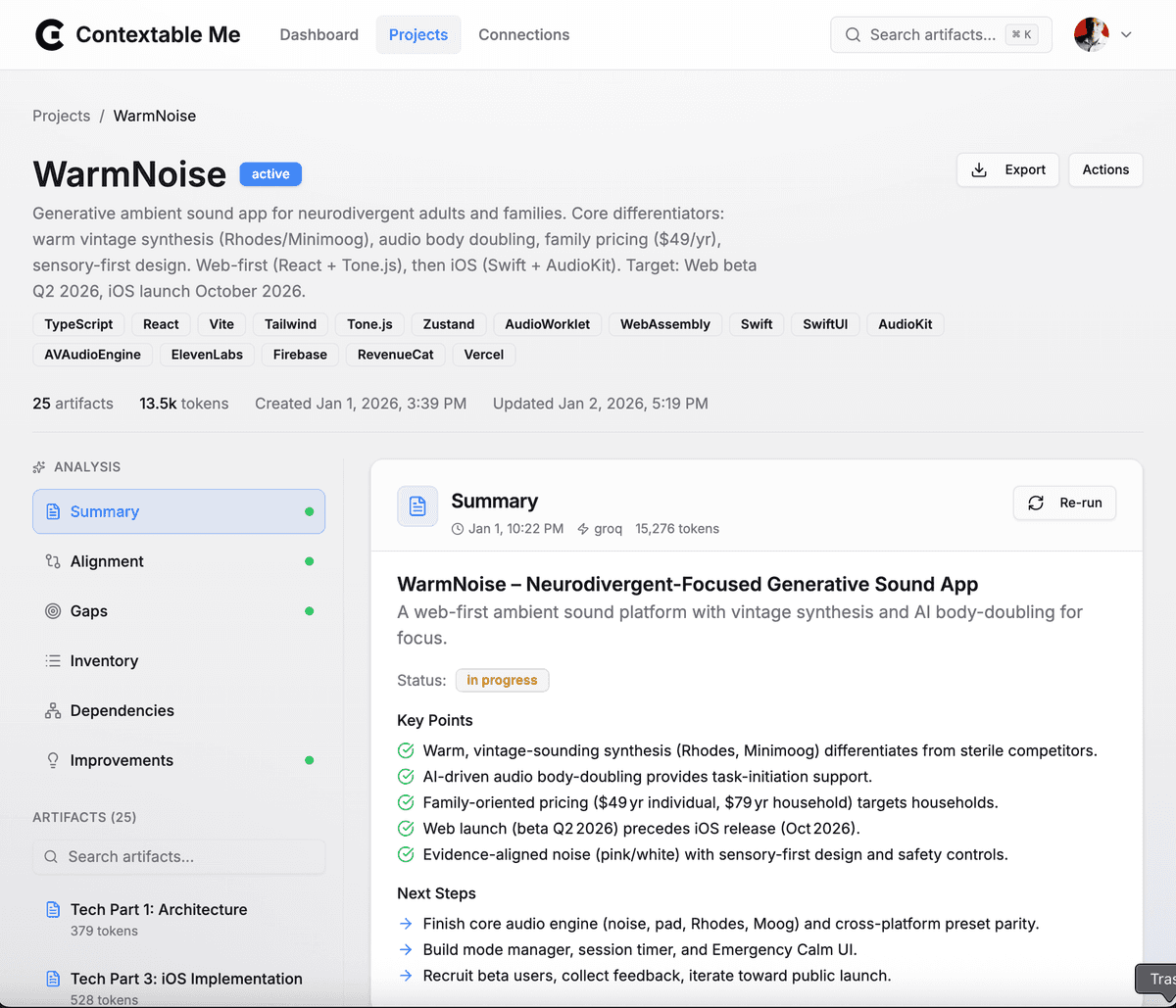
Your new project will appear in Projects. Click it to see what was saved.

What Gets Saved
When you save a conversation, the AI creates a comprehensive document that includes:
The Problem
What you're trying to solve
Goals & Success Criteria
What "done" looks like
Current Status
Progress, blockers, next steps
Key Decisions
What you decided and why
Technical Details
Architecture, constraints, terminology
Resume Prompt
How to continue later
Organizing Your Saves
For larger projects, you can organize content by importance level. This helps your AI load only what's needed, saving context window space.
Always loaded first
Key decisions, architecture, essential context. Mark your most important artifacts as "core" so they're always available.
Default priority
Regular notes, code, and documentation. Loaded when there's room in the context window.
Load on demand
Detailed specs, logs, verbose examples. Only loaded when specifically requested to save context space.
Pro tip: For large projects, save multiple focused artifacts instead of one massive document. For example: "Architecture Overview" (core), "Implementation Details" (normal), "API Reference" (reference). This lets your AI load only what it needs.
Tips for Better Saves
Save periodically, not just at the end
Long conversations can hit context limits. Save every 20-30 messages to make sure nothing is lost.
Use "Update Project" for updates
If you already have a saved project, use the update prompt to add new artifacts instead of creating a new project.
Be explicit about what matters
If there's something specific you want saved, mention it before pasting the save prompt: "Make sure to capture the API design we discussed."
Break up large content
Instead of one giant artifact, create multiple focused ones. This makes loading faster and lets you selectively load what you need.